We’ve all been there. The internet crawls to a halt. The buffering wheel spins endlessly. Frustration mounts. And then, the familiar advice pops up: “Have you tried turning it off and on again?” This seemingly simple solution – the Wi-Fi router reset – has become the universal remedy for all our connectivity woes. But is it really the ultimate fix-all, or is there more to the story?
The Ubiquitous Reboot: A Modern-Day Ritual
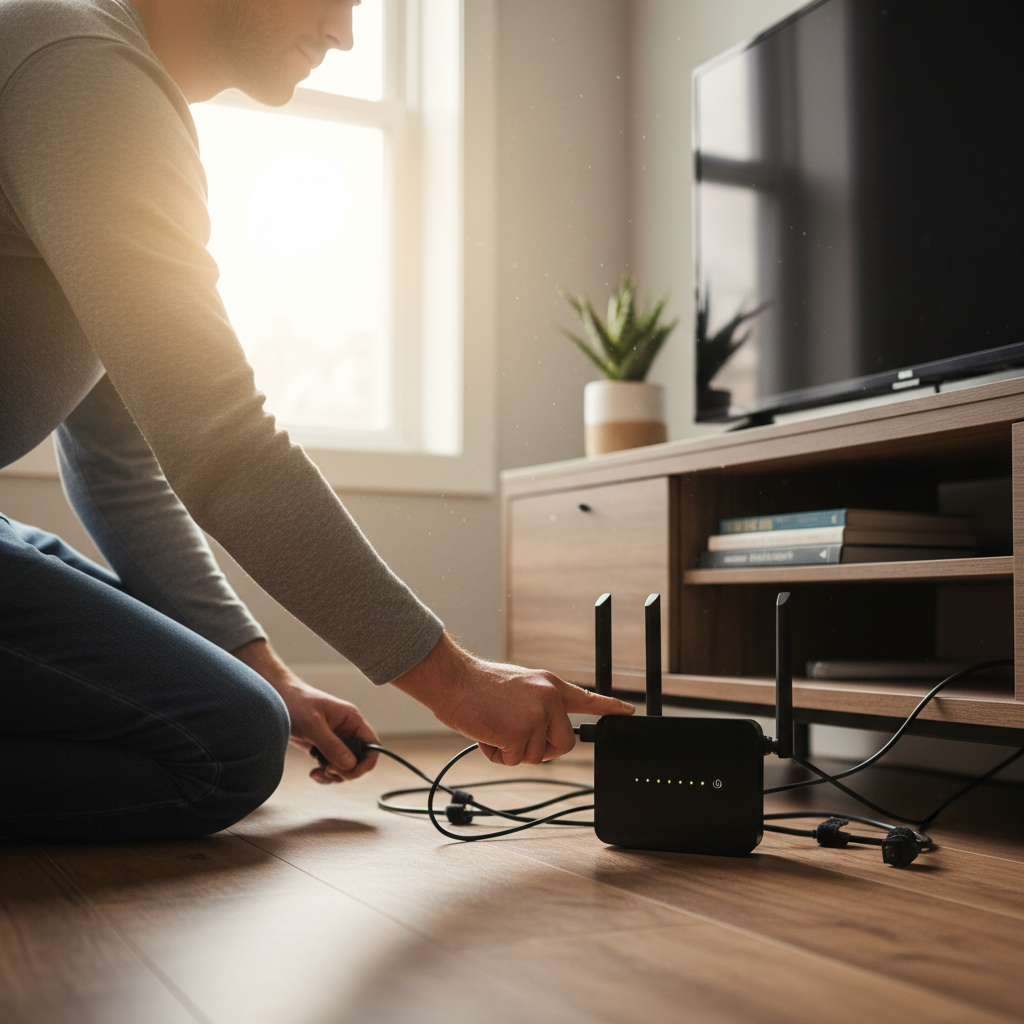
The act of unplugging your Wi-Fi router, waiting a few seconds, and plugging it back in has become a ritual. It’s a reflex, a go-to move when the digital world falters. But why? The appeal lies in its simplicity. It’s a quick, easy action that seemingly addresses the complex technology humming away in that little box. It’s also often the first suggestion you get from tech support, making it feel like an official, endorsed solution.
The belief stems from a basic understanding of how technology works. We know that computers, including routers, are essentially complex machines. Like any machine, they can experience glitches, temporary stalls, or accumulated errors. A reboot is like hitting the reset button, clearing out the temporary files, and refreshing the system. Seems logical, right?
Why the Router Reset Seems to Work (Sometimes)
Let’s be clear: sometimes, a router reset *does* work. Here’s why it has earned its reputation:
- Temporary Glitches: Routers, like any computer, can experience temporary software glitches. These might manifest as slowdowns, dropped connections, or inability to access certain websites. A reboot often clears these minor issues.
- IP Address Renewal: Your router assigns IP addresses to all devices on your network. Sometimes, these addresses can cause conflicts. A reset forces the router to reassign addresses, which can solve connectivity problems.
- Memory Management: Routers have limited memory. Over time, this memory can get filled with temporary data and processes, slowing down performance. A reset clears this memory, allowing the router to operate more efficiently.
- Firmware Issues: Though less common, sometimes a router’s firmware (the software that controls it) might encounter a problem. A reset can sometimes kickstart a malfunctioning firmware process.
When the internet functions again after a reboot, it reinforces the belief that this is indeed the solution. This positive reinforcement solidifies the ritual, even when the underlying problem is something else.
The Limitations: When Rebooting Isn’t Enough
While the router reset is a handy trick, it’s not a magic bullet. In many cases, rebooting won’t solve the underlying problem. Here’s why:
- ISP Issues: Often, slow internet isn’t a problem with your equipment; it’s a problem with your Internet Service Provider (ISP). If your ISP is experiencing outages or has general performance problems, resetting your router will do nothing to solve it.
- Hardware Problems: Your router might be old, faulty, or simply not powerful enough for your needs. A reset can’t fix a failing piece of hardware.
- Network Congestion: If many devices are using the internet simultaneously, or if you’re experiencing heavy traffic at peak times, your internet will slow down. A reset won’t change the laws of physics or the number of people streaming cat videos.
- Placement: The location of your router is key. If it’s blocked by walls, appliances, or too far from your devices, the signal will be weak, and a reboot won’t magically move the router.
- Malware/Viruses: If a device on your network is infected with malware, it could be consuming bandwidth and causing problems. A router reset won’t remove the malware.
In these scenarios, the reboot may provide a temporary illusion of improvement, but the underlying problem persists.
Beyond the Reboot: A More Holistic Approach
If you’re constantly rebooting your router, it’s time to take a more comprehensive approach. Here’s what to do:
- Check Your Internet Speed: Run a speed test to see if you’re getting the speeds you’re paying for. If not, contact your ISP.
- Examine Router Placement: Ensure your router is in a central, open location, away from obstructions and other electronic devices that could cause interference.
- Update Router Firmware: Router manufacturers regularly release firmware updates to fix bugs and improve performance. Check your router’s settings to see if an update is available.
- Optimize Your Network: Use a Wi-Fi analyzer app to identify channels with less traffic. Consider using a dual-band router that operates on both 2.4 GHz and 5 GHz bands.
- Monitor Your Devices: Make sure your devices aren’t downloading large files in the background or running bandwidth-intensive applications when you don’t need them. Consider limiting the number of connected devices.
- Consider Upgrading Your Router: If your router is old, it might be time for an upgrade. Newer routers offer faster speeds, improved security, and better performance.
- Troubleshoot Other Devices: If the internet seems fine on other devices, the problem might be with the device you are using, not your router.
Taking these steps can often resolve the internet issues that a simple reboot cannot. It’s about diagnosing the real issue, not just applying a quick fix.
The 2026 Reality: Smarter Networks and More Complex Problems
In 2026, the internet landscape has evolved. We have more connected devices than ever before, using more bandwidth. Smart home devices, online gaming, and 4K streaming are commonplace, placing greater demands on our home networks. This increased complexity means that Wi-Fi problems can be more challenging to diagnose, and the router reset, while still a valid troubleshooting step, is less likely to be a complete solution.
What’s more, with the rise of AI-powered smart home devices, many of us are increasingly reliant on a stable and fast internet connection. Any disruption is more noticeable and more frustrating than ever.
A few relevant trends in 2026:
- Mesh Wi-Fi Systems: These are becoming increasingly popular for their ability to provide consistent coverage throughout the home. They offer a solution to dead zones and signal dropouts, making the router reset less frequently necessary.
- Wi-Fi 6E and Wi-Fi 7: The latest Wi-Fi standards offer faster speeds and better performance, especially in crowded environments. Upgrading your router to one of these standards can significantly improve your network’s reliability.
- Internet of Things (IoT) Management: With more and more connected devices, managing your home network is becoming a challenge. You will need to take extra steps to troubleshoot the internet.
In this context, understanding the limits of the router reset and adopting a more proactive approach to network management is more important than ever. The Always-On Habit: Rethinking Our Relationship with the Phone in 2026 has great tips on limiting your tech usage.
Common Misunderstandings Debunked
Let’s clear up some common misunderstandings surrounding router resets:
- Myth: Rebooting fixes all internet problems. Reality: It’s a troubleshooting step, not a guaranteed solution.
- Myth: The more expensive the router, the less you’ll have to reset it. Reality: Expensive routers often have better performance and features, but they’re still subject to the same potential problems as cheaper models.
- Myth: Resetting the router frequently damages it. Reality: Resetting the router won’t damage it, unless it’s a hardware fault.
- Myth: If the internet works again after a reset, the problem is solved. Reality: It may be a temporary solution; the underlying problem may still exist.
What Matters Instead: Proactive Network Management
Instead of relying solely on the router reset, focus on proactive network management. This means:
- Regularly checking your internet speed.
- Keeping your router firmware up-to-date.
- Optimizing router placement.
- Managing your connected devices.
This approach will help you maintain a more stable and reliable internet connection and will minimize the need for those frequent, frustrating resets.
Clear Takeaway
The router reset is a useful tool, but it’s not a panacea. Recognize its limitations and adopt a more comprehensive approach to network troubleshooting. This is the way to ensure a reliable and enjoyable online experience in the always-connected world.
FAQ: Router Reset Edition
Here are some frequently asked questions about the router reset:
1. How often should I reboot my router?
There’s no hard and fast rule. Reset your router when you’re experiencing connectivity problems, but don’t make it a daily routine. If you’re frequently resetting your router, investigate the underlying cause of your internet issues.
2. Should I unplug the router for a certain amount of time?
Yes, unplugging it for 30 seconds is a good practice to ensure all temporary files and processes are cleared. A longer duration is typically unnecessary.
3. Is it safe to reset my router?
Yes, it’s generally safe. However, make sure you know your internet connection settings (like your internet login credentials) if your router requires them after a reset.
4. Will a router reset delete my Wi-Fi password?
No, a simple reset (unplugging and plugging it back in) will not delete your Wi-Fi password. However, a factory reset (which involves pressing a button on the router) will revert the router to its factory settings and erase your Wi-Fi password.
5. My internet is slow, but the reset didn’t help. What should I do?
Try the other troubleshooting steps discussed above. Contact your ISP, check your router’s settings, and optimize your network. You may also want to assess the impact of your Josephs Well devices.
6. Could my router be hacked?
It’s possible, though not common. Ensure your Wi-Fi password is strong and consider enabling security features like WPA3 encryption. If you suspect your router has been hacked, reset it to factory settings and change your Wi-Fi password.
7. Will a reset improve my gaming experience?
A router reset might help if temporary network glitches are affecting your gameplay. However, it won’t magically reduce lag due to poor internet speed or distance from the game server.
8. What is the difference between resetting and restarting a router?
They are used interchangeably. Both typically involve turning off the router for a short time and then turning it back on.